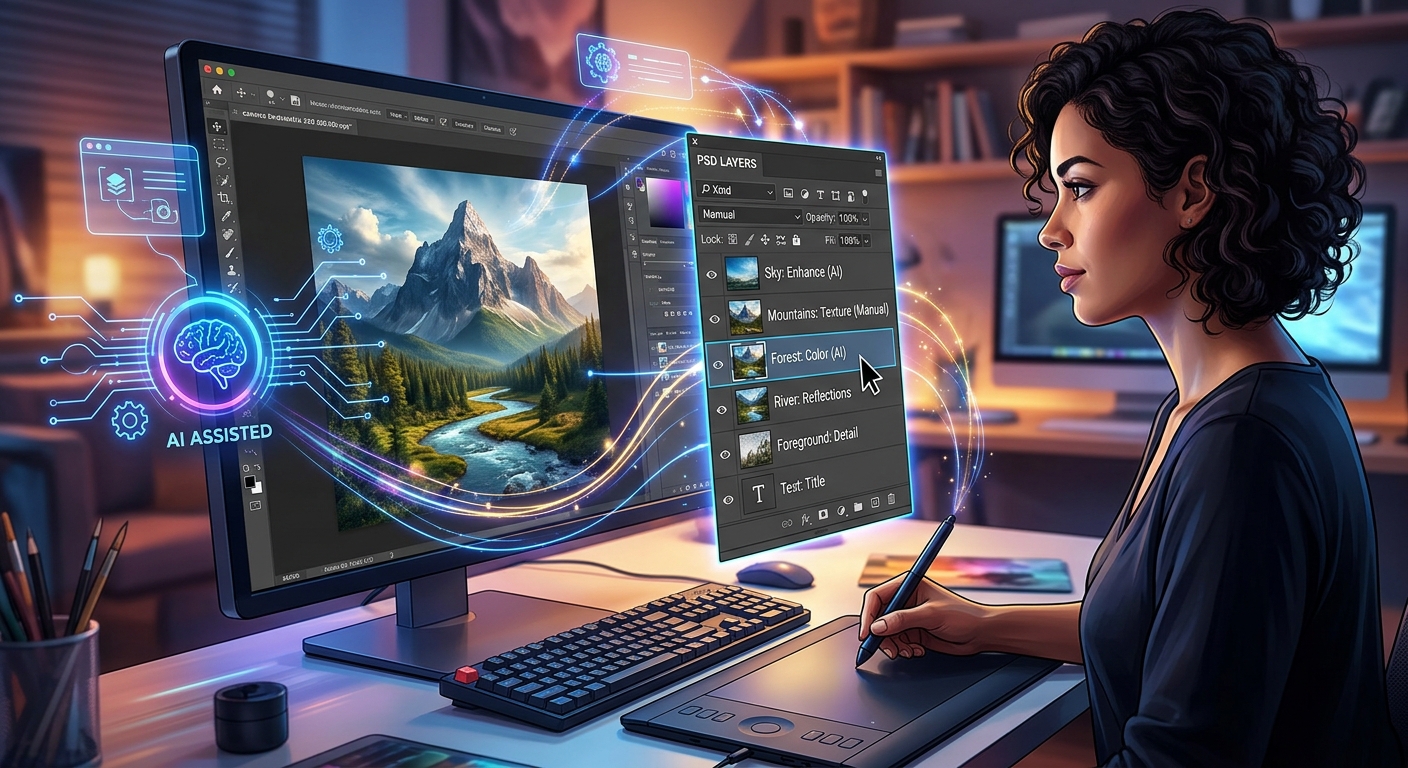
Your face swap looks convincing until you notice the jawline. A faint edge catches the light. The skin tone needs a small adjustment. Then someone asks for a version without the caption. Whether those changes take five minutes or a fresh editing session often depends on what you saved. A layered PSD keeps separate parts of your project available for revision. A flattened export keeps their combined appearance. Both are useful, but they serve different jobs.
Keep Your Editing Options Open
A layered PSD is your working project. It can preserve the original photo, swapped face, masks, text, and separate adjustments so you can revisit individual choices. A flattened JPEG or PNG is a delivery copy that combines visible content into one image. Keep the layered version for revisions, then export a copy for sharing. Saving an AI result as PSD does not rebuild missing layers, and neither format automatically proves consent or protects private material.
Layers Keep Editing Decisions Separate
Think of a face-swap project as several pieces arranged over one another. The original photo sits underneath. A replacement face sits above it. A mask controls which parts of that replacement remain visible. Separate adjustments can change its brightness or color. A caption may occupy another layer.
Those pieces combine into the picture you see, but they remain individually accessible when the document retains its layers. You can hide a caption without touching the portrait. You can soften a mask near the cheek without repainting the background.
A PSD can hold this working structure. Official guidance on format support identifies PSD and PSB as options for preserving layers, masks, and Photoshop-specific features.
The file extension alone is not a guarantee of useful separation. A PSD containing one image layer offers far fewer revision options than a carefully organized document. What matters is both the format and the editing structure saved inside it.
For a basic format introduction, About PSD provides context for understanding the working file behind the finished image.
A Flattened Export Preserves the Result
Flattening combines visible content into a single image layer. In a typical export workflow, a JPEG or PNG contains the rendered picture rather than your editable layer stack. Your working PSD can remain layered while you create that separate export.
This distinction helps prevent a common mistake. You do not need to flatten your only working document just to publish an image. Exporting a delivery copy lets you keep the project available for later changes.
A flattened image is still editable. You can crop it, adjust its overall color, or retouch pixels. What disappears is direct access to the original separate elements. Removing text that has been combined with a face means reconstructing the image underneath it.
Transparency does not change that rule. A PNG can preserve transparent areas around a cutout, but it does not preserve your PSD layer stack. A transparent face cutout is still different from a document containing the face, its mask, the source photograph, and editable adjustments.
What Each Saved File Lets You Change
| Editing Need | Layered PSD | Flattened JPEG or PNG |
|---|---|---|
| Adjust the face boundary | Revise a retained mask independently. | Retouch the combined pixels or rebuild a selection. |
| Change a caption | Edit it if the text layer remains editable. | Remove existing lettering and recreate the background. |
| Try another face result | Add an alternative layer and compare versions. | Return to source material or reconstruct the edit. |
| Publish a finished image | Usually requires a separate export. | Suited to sharing when the platform accepts the format. |
| Hand over editable components | Can include separate assets and hidden content. | Contains the rendered image, with possible metadata. |
AI Results Need a Working Structure Around Them
Many face-swap tools deliver a finished JPEG or PNG. The tool may have processed facial landmarks, lighting, and identity internally, but its download does not necessarily include those operations as editable components.
Opening that download and saving it as PSD puts the image into a different container. It does not recover the original face underneath the swap. It also does not create a jawline mask, separate lighting controls, or a record of the tool's internal decisions.
You can still build a useful layered project. Keep your original photograph, then place the AI result above it. If both images line up, mask the upper layer so only the intended replacement area shows. Make later corrections on separate layers where your editor supports them.
Check more than the face. An AI result may also change hair, earrings, clothing, or background details. Comparing it against the original helps you decide which changes belong in your final picture.
Build a Face-Swap Project You Can Revisit
Imagine making a costume preview with a consenting friend. The first result looks good, but the face feels too bright beneath a dark hood. Later, your friend wants a different crop and a smaller caption. A layered project gives each request a clear place to happen.
- Keep untouched source images. Save the original photograph and approved face reference separately from your edits.
- Create the AI result. Check the upload requirements and privacy terms before submitting identifiable photos.
- Start a layered document. Place the original photo underneath the AI result. Check alignment before masking.
- Control the replacement area. Add a mask to the result layer and inspect the cheeks, jaw, hairline, and any overlapping objects.
- Separate later corrections. Keep captions and supported color adjustments editable. Limit face corrections to the intended area.
- Save the working PSD. Use clear layer names and save a new version before major changes.
- Export a delivery copy. Choose the size and format required for sharing, then open the exported file to inspect it.
A mask is especially helpful because it hides pixels without deleting them. If you hide too much near an eyebrow, you can reveal that area again. This makes boundary cleanup easier to revise than repeatedly erasing parts of your only replacement layer.
Layers do not repair a poor source result by themselves. A mismatched head angle or distorted expression may call for another AI attempt. The working document simply makes it easier to compare attempts and retain useful edits.
Choose Export Formats for Their Actual Job
JPEG is often a sensible delivery format for photographs. Its compression can keep files manageable, but it discards some image information. Repeatedly editing and saving JPEG copies can introduce visible artifacts, especially around text and sharp edges.
PNG uses lossless compression and supports transparency. It can suit cutouts, graphics, and images where crisp lettering matters. Photographic PNG files can be much larger than comparable JPEG exports. Lossless storage also cannot repair damage already present in an earlier compressed image.
Neither choice replaces a layered working file. Keep the PSD, then make fresh exports from it when you need different dimensions or settings.
Before publishing, inspect the exported image at its actual display size. A face may look convincing while enlarged in your editor yet appear oddly sharp in a small social post. Check the crop, caption, color, and edges. Follow the destination's current upload requirements rather than assuming one export fits every platform.
Check Compatibility Before Passing Along a PSD
PSD support varies across editing applications. A program may open the document yet handle certain effects, text, masks, or adjustment types differently. Being able to view the picture does not mean every component remains editable.
For a handoff, test a copy in the receiving application if possible. Compare its appearance with a flattened reference image. Check that the layers needed for future changes remain usable.
Missing fonts and externally linked assets can also disrupt a project. Keep necessary source material available and explain any dependencies to the recipient. Avoid converting editable text into pixels merely to simplify a handoff unless that tradeoff fits the project.
If an online face-swap tool accepts only JPEG or PNG, export the input it needs from your working file. Keep the PSD locally and bring the returned result into your project afterward.
Preservation Includes Privacy and Clear File Names
A layered file can contain more than the visible picture. Hidden layers may hold rejected swaps, original faces, or reference material. A recipient who receives the PSD may be able to inspect those elements.
Share a flattened delivery copy when someone only needs the finished image. Check its metadata separately. Flattening does not automatically remove identifying information or establish permission to publish another person's likeness.
- Name files by purpose: distinguish the working project, review copy, and published export.
- Retain meaningful versions: keep earlier working files before major face or composition changes.
- Back up the project: preserve the PSD and required source assets in another trusted location.
- Review what you share: inspect hidden content before handing over an editable document.
- Keep consent clear: confirm that participants agree to the intended edit and its audience.
Use filenames that explain their role, for example costume-preview-working-v03.psd and costume-preview-post.jpg. Avoid putting unnecessary personal details in filenames. For realistic face swaps, make the edited nature clear wherever viewers could mistake the image for a real event.
Leave Room for the Next Revision
PSD layers still matter because an AI output is often the start of a creative decision, not its final form. You may want to refine a boundary, try another face, move a caption, or respond to the person whose image you used.
A layered working file keeps those choices accessible when you preserve the relevant components. A flattened export makes the finished result easier to deliver. Keep both when a project deserves future attention: one file for continuing the work, another for showing it.